How to Install APK Files Safely on Android
An APK file is the package Android uses to install an app. Most people install apps from the Google Play Store, where Google handles the download, the checks, and the updates. An APK install, sometimes called sideloading, skips that store. You download a file, give Android permission to install it, and the app is added to your phone. That extra freedom also adds extra responsibility. There is no store in the middle to check the file for you, so you have to do the checking yourself. This guide explains how to do that carefully, in plain steps, before you install anything from outside the Play Store.
This is an independent, unofficial guide. It does not recommend any source outside the Play Store, and it does not claim that any such source is safe. The safest choice is always the official store when the app you want is available there.
What an APK Install Actually Does
When you install an APK, Android copies the app onto your device, gives it the permissions listed in the package, and adds its icon to your app list. After that, the app can run like any other app, within the permissions you granted. It will not usually update itself through the Play Store, because the store did not install it. That means you are also responsible for updates, for checking whether a newer version is genuine, and for removing the app if it behaves badly. Before you install, ask three questions. Do I need this app, or is there a version in the Play Store that does the same job? Do I know exactly where this file came from? And am I willing to check it again if it asks for an update later? If the answer to any of those is no, do not install it yet.
Check the Source Before You Download
The source matters more than anything else in this guide. A clean-looking file from an untrusted website is still an untrusted file. Only download an APK when you can identify the source clearly: the name of the website or developer, how you reached it, and why you trust it. Be careful with links shared in comments, chat groups, video descriptions, and short links that hide the real address. Those are common ways for fake files to spread, because the link itself tells you nothing about where it leads. Look for warning signs before you tap download. A page full of large download prompts, pop-ups, countdown timers, or claims that you must install quickly is trying to rush you. A genuine source does not need to rush you. If the site asks you to install another app first, to disable security features, or to turn off Play Protect, stop. Those are not normal requirements for a legitimate app. Keep a note of where you got the file, including the website address and the date.
Understand Unknown Sources
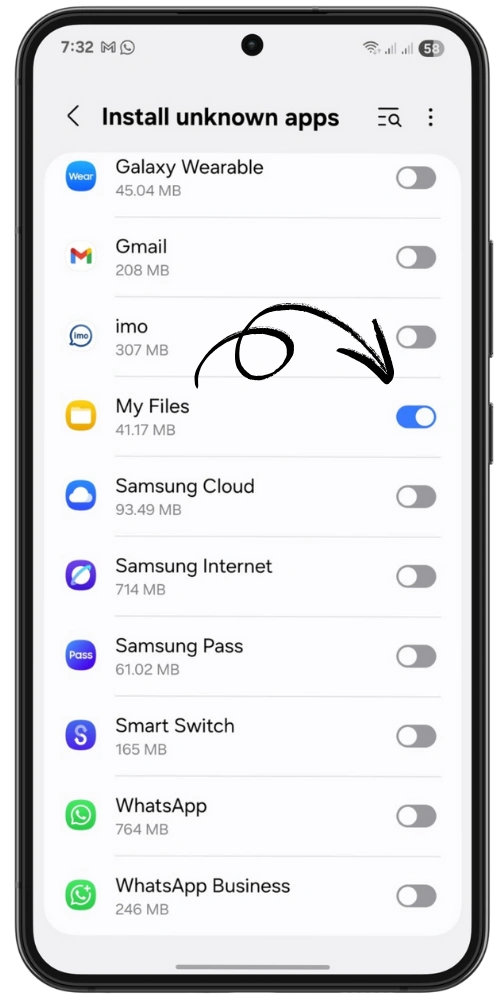
Android blocks installs from outside the Play Store by default. To install an APK, you must allow installs from the app that is opening the file, usually your browser or your file manager. This setting is called Install unknown apps, or Unknown sources on older versions. It is not a single switch for the whole phone. You allow one app, such as your browser, to install other apps. Do not allow every app to install unknown apps. Allow only the one app you need for this install, and turn the permission off again when you have finished. On most recent Android versions, you will find it under Settings, then Apps, then Special app access, then Install unknown apps. The exact menu names vary by phone brand and Android version, so use the Settings search box and type Install unknown apps if you cannot find it. If Android shows a warning when you turn this on, read it. The warning is there because this permission is powerful, and it should not be switched on casually.
Check the File Before You Install It
Before you tap the file, take a minute to check it. First, look at the file name and size. A file that claims to be one app but has an unrelated name, a strange extension, or a size that seems far too small or far too large deserves a second look. Do not rely on the file name alone, though: a name is easy to change, and it proves nothing by itself. Second, check whether Google Play Protect is switched on. Play Protect is the security feature built into Android and the Play Store. It can scan apps before they are installed and warn you about apps it recognises as harmful. You can find it in the Play Store app, under your profile and then Play Protect. Make sure it is on, and do not turn it off to install a file. If Play Protect warns you about a file, take the warning seriously and do not install it. Third, if the source gives you a checksum, such as a SHA-256 value, compare it with the file you downloaded. This is optional, and many sources do not provide one. If they do, a mismatch means the file you have is not the file they published, and you should delete it.
Read the Permissions Before You Accept
When you install an APK, Android shows the permissions the app is asking for. Read them before you tap Install. Some permissions make sense. A camera app needs the camera. A messaging app needs contacts. Other permissions do not make sense. A simple video player does not need your text messages, your call history, or permission to draw over other apps. A wallpaper app does not need your location or your microphone. If an app asks for permissions that have nothing to do with what it does, that is a warning sign, not a detail to ignore. You can often deny some permissions after installation and the app will still work, but the safest choice is to stop before installing an app whose permission list does not make sense. Be careful with permissions requested after installation too. An app that works normally for a week and then suddenly asks for access to your messages or your files is asking for something new, and you should ask why before you agree.
Install, Then Clean Up
Once you have checked the source, the file, and the permissions, the install itself is simple. Tap the downloaded APK file in your browser or file manager, read the install screen, and tap Install only if everything still looks right. Wait for the installation to finish, then open the app once to check that it opens and behaves as expected. If it crashes immediately, asks for strange permissions, or opens advertising pages, uninstall it straight away. After a successful install, turn off the Install unknown apps permission you switched on earlier. Leaving it on makes it easier for a bad file to install later by accident. Then deal with the APK file itself. You do not need to keep it once the app is installed. The app is already on your phone, and the file is only a copy of the installer. Keeping install files uses storage and creates a risk: an old APK left in your downloads can be tapped by mistake months later. Delete the APK file after installation, unless you have a specific reason to keep it in a clearly labelled folder.
Updates, Removal, and Red Flags
An app installed from an APK does not usually update through the Play Store, so you need a plan for updates. Check the original source from time to time for a newer version, and apply the same checks to the update as you did to the first install. Do not accept update files from a different website, a chat message, or a pop-up inside the app itself. A genuine update comes from the same source as the original file. If you are not sure, do not update. An old version you have already checked is safer than a new file from an unknown place. Uninstall an app promptly if it starts showing unexpected adverts, draining the battery quickly, or using large amounts of mobile data in the background. To uninstall, go to Settings, then Apps, find the app, and tap Uninstall.