How to Check Your Anime Slayer App Version
Knowing which version of Anime Slayer you have installed is a small detail that makes a large difference. It tells you whether an update is available, whether a bug you have seen has already been fixed, and what to say when you ask for help. Yet many users never check it, and when a problem appears they cannot say whether they are running an old build or the latest one. This guide shows you two simple ways to find the version number on Android, explains what the number means, and explains how to use it without guessing.
Why the Version Number Matters
An app version is a label for a particular build of the software. Each time the developer changes the app, whether to add a feature, fix a bug, or improve performance, the new build usually carries a new version number. That number is therefore a quick way to tell how recent your copy is, and whether the behaviour you are seeing matches what other users on the same build are reporting.
The version matters most in three situations. The first is updates. If a new feature is announced or a fix is released, you need to know whether your phone already has it. Without the version number, you can only guess. The second is troubleshooting. Many problems are specific to one build, and the first question in any useful diagnosis is which version is installed. A crash that affects an old version may already be fixed in a newer one, while a crash that affects the newest version may be a new bug. The third is comparison. If a friend’s copy works and yours does not, comparing version numbers is a fast way to see whether you are simply behind.
One caution applies to everything that follows. The current version of Anime Slayer is unverified on this independent guide site. This article therefore does not state a current version number, and you should not rely on any number quoted elsewhere as current unless you can verify it yourself on your own device or from a source you trust. The only version fact available here is historical, and it is labelled as such below.
Method 1: Check Inside the App
Many Android apps show their version inside their own settings or About screen, and Anime Slayer may do the same. This is usually the quickest method, because you do not need to leave the app. The exact location can vary, so treat the steps below as a guide rather than a promise that every menu label will match.
- Open Anime Slayer. Start the app as you normally would and wait for the main screen to load.
- Open the app menu or settings. Look for a menu icon, a profile icon, or a settings gear. On many apps this sits in a corner of the main screen or at the bottom of a navigation bar. Tap it to open the menu.
- Look for About, App info, or Version. Scroll through the settings or menu options and look for an entry labelled About, About this app, App info, or Version. Some apps place it at the very bottom of the settings list, where it is easy to miss.
- Read the version line. If the app shows a version, it will usually appear as a short number, such as 1.5.5 in the historical example below, sometimes followed by extra build information. Note the full number exactly as shown, including every dot and digit.
Method 2: Check in Android Settings
The Android system keeps its own record of every installed app, including its version number. This method works even if the app itself does not show a version, and it is the most reliable way to confirm what is actually installed on your phone.
- Open Settings. Find the Settings app on your home screen or in your app drawer and tap it.
- Go to Apps. Scroll down and tap Apps, or Applications, depending on your phone. On some phones you may need to tap Apps and then See all apps.
- Find Anime Slayer. Scroll through the list, or use the search box at the top and type Anime Slayer. Tap the app name to open its App info page.
- Read the version line. Near the top or bottom of the App info page, depending on your Android version, you should see a line that reads Version, followed by the version number. On some phones the line also shows the app size or the installation date nearby. Note the number exactly as shown.
Once you have the number, write it down or take a screenshot. A screenshot is useful if you later need to report a problem, because it records the version exactly, without the risk of copying a digit wrongly. Keep the screenshot until the problem is resolved, then delete it if you do not need it.
What the Version Number Tells You
A version number is usually made of two or three parts separated by dots, such as 1.5.5. The first part often changes only for large releases, the second for smaller feature changes, and the third for small fixes. That pattern is common, but it is not a rule, and different developers use different schemes. You should therefore treat the number as a label for comparison, not as a measure of how large a change was.
The One Version Fact Available Here, Labelled as Archived
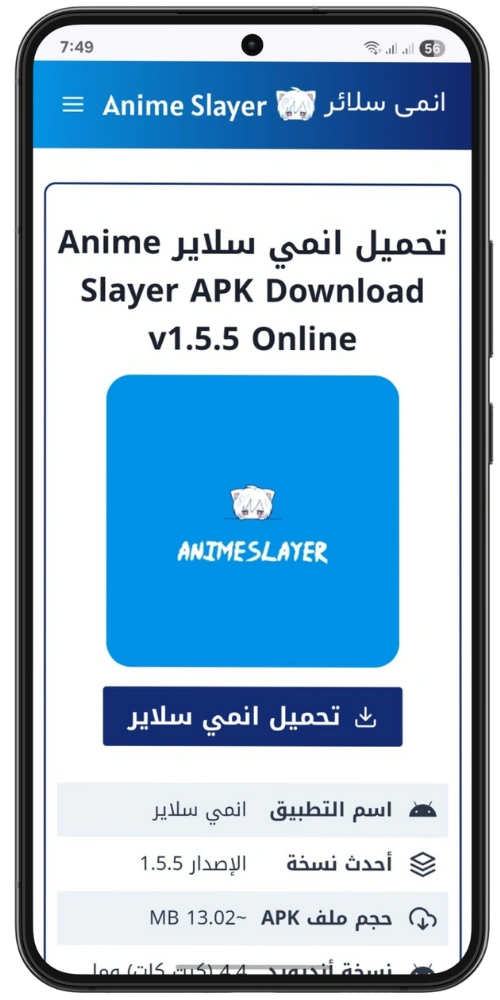
The only version fact available to this guide is historical. The archived homepage of the old Anime Slayer site, captured on 27 February 2026, listed version 1.5.5. That is an archived figure, not a current one. It describes what the archived page showed on that date, and it must not be treated as the current version today.
This distinction matters because an archived number can easily be mistaken for a live one. If your phone shows a different number, that does not mean your copy is wrong. It may mean the app has been updated since the archive was captured, or that the archived page described a different build, or that your copy came from a different source. The correct response is to record the number your own device shows, and to compare it with the update information available at the time you check, rather than assuming the archived number is still current.
How to Use the Version When You Ask for Help
When you report a problem with Anime Slayer, the version number is one of the most helpful details you can include. A useful report usually contains four facts: the app version, the Android version, the phone model, and a short description of what happens, including what you were doing when it happened. With those four facts, anyone trying to help can tell whether the problem is known, whether it affects a particular build, and whether an update is the likely answer.
Be precise. Write the full version number, not a rounded version of it. A report that says version 1.5 is far less useful than one that says version 1.5.5, because the missing digit may be the difference between a build with a bug and a build without it. If you took a screenshot of the App info page, keep it ready to share, but do not share screenshots that show personal information unrelated to the problem.
What to Do If You Cannot Find the Version
Checking your Anime Slayer version takes less than a minute once you know where to look. Done through Android Settings, it gives you a reliable number from the system itself. Done inside the app, it can be even quicker when the option is present. Either way, the habit is worth building: check the version before you update, before you troubleshoot, and before you ask for help. It is a small step, but it turns vague reports into precise ones, and precise reports are the ones that get fixed.