How to Clear Anime Slayer App Cache
If Anime Slayer starts loading slowly, shows old artwork, freezes on a list, or behaves oddly after an update, clearing the app cache is one of the simplest first steps you can try. It takes less than a minute, it does not delete your account, and it often removes the temporary files that are causing the problem. This guide explains what the cache is, when clearing it helps, when it does not, and exactly how to do it on Android without accidentally deleting something more important.
What Is the App Cache?
The cache is a collection of temporary files that Anime Slayer stores on your phone so it can work faster the next time you open it. When you browse a list of titles, open a series page, or load a poster image, the app saves copies of some of that information locally. The next time you return to the same page, it can show the saved copy instead of downloading everything again. That is why pages that you have visited before often feel quicker to load.
Over time, however, that temporary store can grow large or become out of date. A cached image may no longer match the current artwork, a cached list may show titles that have changed, or a damaged temporary file may stop a page from loading correctly. In those cases the cache, which is meant to save time, starts to cause delays and errors instead. Clearing it simply removes those temporary copies. The app then downloads fresh copies the next time you need them, which is why the first load after clearing the cache can feel slightly slower before everything returns to normal.
When Clearing the Cache Helps
Clearing the cache is most useful when the problem looks like stale or broken temporary content. If posters load as blank squares, if a list shows old information after you know it has changed, if the app is slow only on pages you have visited before, or if a page that used to work now stops halfway through loading, a damaged or outdated cache is a plausible cause. It can also help after an app update, when old temporary files from the previous version no longer match the new version.
It can help, too, when the app is using more storage than you expect. Temporary files accumulate quietly, and on a phone with little free space they can add up to hundreds of megabytes. Clearing them frees that space immediately, although the cache will begin to grow again as you use the app. That is normal. A cache is supposed to refill, and a cache that grows again after you clear it is not a sign that something is wrong.
When Clearing the Cache Does Not Help
Clearing the cache will not fix every problem, and it is worth knowing its limits so you do not repeat it endlessly. It will not fix a weak or unstable internet connection, a server-side outage, or a problem with your account. If videos will not play because your connection keeps dropping, fresh temporary files will not change that. It will not fix a version that is no longer supported, and it will not restore content that has been removed from the service.
It will also not fix a problem that comes from the app data itself, such as a corrupted setting or a broken download. In that case the issue lives in the data store, not the temporary store, and only a different step will address it. Likewise, if the app crashes every time you open it, before it even reaches a page, the cause may lie elsewhere, and clearing the cache is only one step to try before looking at updates, storage space, and other troubleshooting.
How to Clear the Cache on Android: Step by Step
The steps below work on most Android phones. The exact wording of menu items can vary slightly between phone makers and Android versions, but the path is the same on almost every device.
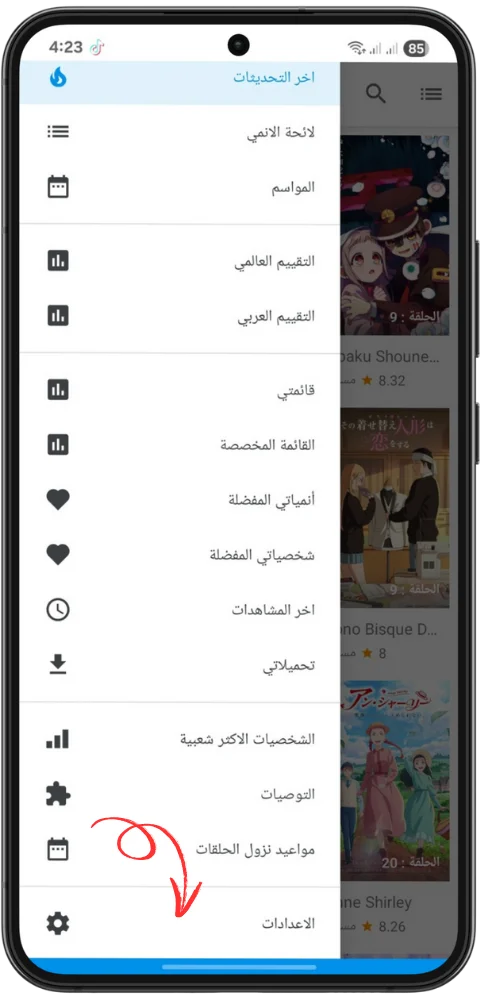
- Open Settings. Find the Settings app on your home screen or in your app drawer and tap it. Do not open the settings inside Anime Slayer itself for this task; the cache controls live in the Android system settings.
- Go to Apps. Scroll down and tap Apps, or Applications, depending on your phone. On some phones you may need to tap Apps and then See all apps to show the full list.
- Find Anime Slayer. Scroll through the list, or use the search box at the top of the Apps screen and type Anime Slayer. Tap the app name when it appears to open its App info page.
- Open Storage. On the App info page, tap Storage, or Storage and cache. This screen shows how much space the app is using, split into app size, user data, and cache.
- Tap Clear Cache. Tap the Clear Cache button. On most phones the button is clearly labelled and sits next to a second button labelled Clear Storage or Clear Data. Make sure you tap Clear Cache only.
- Return and reopen the app. Go back to your home screen and open Anime Slayer again. The first pages you visit may load a little more slowly while the app rebuilds its temporary files. That is expected, and loading speed should return to normal after a short while.
Cache vs Data: Do Not Mix Them Up
This is the most important warning in this guide. On the same Storage screen, Android shows two very different actions. Clear Cache removes temporary files only. Clear Storage, also called Clear Data on some phones, removes the app data as well. That includes your settings, your saved preferences, your login state, and any content the app has stored as data, including downloads that are kept inside the app.
Clearing data returns the app to the state it was in when you first installed it. You would need to set it up again, sign in again if the app uses an account, and re-download anything you had saved inside it. For most troubleshooting, that is a much bigger step than you need, and you should not take it by accident.
| Action | What it removes | What stays |
|---|---|---|
| Clear Cache | Temporary files, saved images and lists | Settings, login state, saved data and downloads |
| Clear Storage / Clear Data | Temporary files plus settings, login state and stored data | Only the app itself, as if newly installed |
If Clearing the Cache Did Not Fix the Problem
If the problem is still there after a cache clear, do not assume the app is broken. Work through the next steps in order. First, restart your phone, because a restart clears temporary system state that a cache clear does not touch. Then check your internet connection by opening another app or a website. If other apps are also slow, the connection is the more likely cause.
Next, check whether an update is available for Anime Slayer, and check how much free storage your phone has. An app that cannot write temporary files because the phone is full will behave strangely even after a cache clear. Finally, follow the wider troubleshooting guide for the app, which covers crashes, login problems, playback issues, and other faults step by step. If you reach the point where clearing data or reinstalling is suggested, read the warnings first and make sure you know what you will lose.
Clearing the cache is a small, safe, and useful tool. Used at the right time, it solves a surprising number of everyday glitches. Used with an understanding of what it does and what it does not do, it becomes a reliable first step whenever Anime Slayer starts to feel slow, stale, or slightly out of step.