How to Fix Anime Slayer Server Errors
Nothing is more frustrating than opening Anime Slayer, choosing an episode, and being met with a server error instead of the video. The app itself may open normally, the menus may load, and the episode list may look fine, but the moment you press play, something fails. This is a different problem from an app that will not open at all, and it needs a different approach.
This guide is a server-specific deep dive. It explains what a server error usually means, how to tell whether the problem is on your side or on the server side, and which safe steps you can try, in order. It does not promise a fix, because some server problems can only be fixed by the people who run the servers. It also does not invent test results or claim that any particular step has been tested on a current version of the app. The steps here are generic, safe troubleshooting steps that apply to most streaming apps. This is an independent, unofficial guide site, not the official Anime Slayer website.
What a server error actually means
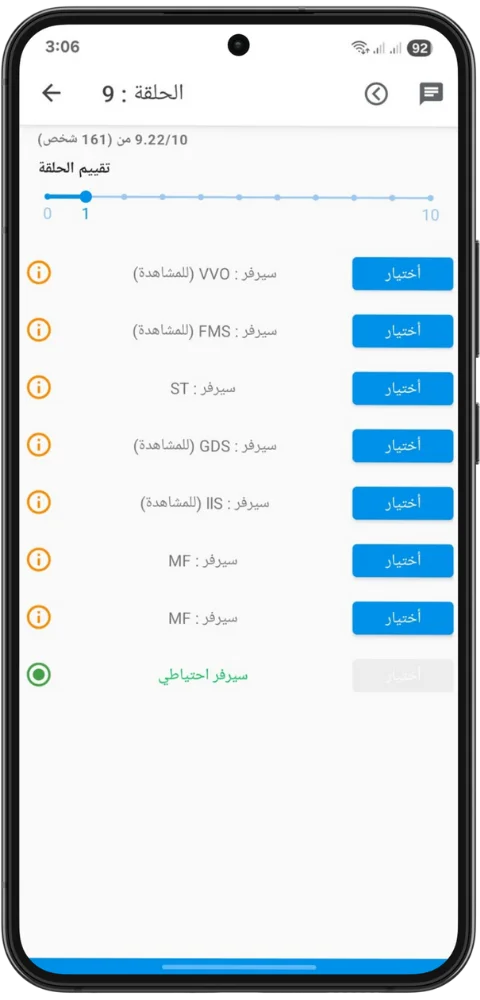
When you watch a video in an app, your phone does not hold the video file. It asks a remote computer, called a server, to send the video over the internet. Your phone, your internet connection, and the server all have to work together. A server error means that something in that chain failed after your request reached the server, or while the server was trying to answer.
Common messages include server error, server not responding, failed to load video, video unavailable, and error 500 or 503. The exact wording varies, and the number does not always tell you the full story, but the general meaning is the same: the video could not be delivered at that moment. It does not automatically mean your phone is broken, your account is blocked, or the app is finished. In many cases the problem is temporary.
First check: is it one episode or everything?
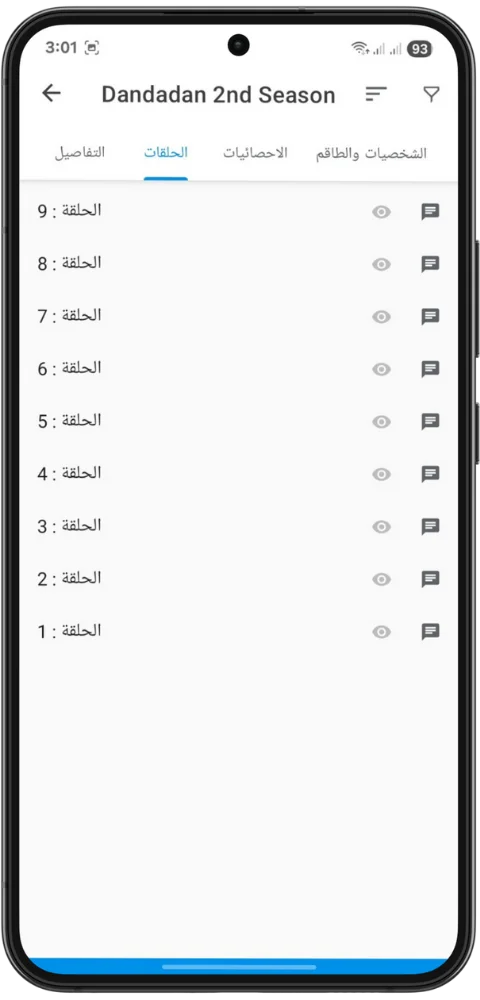
Before you change any settings, find out how wide the problem is. Try a different episode of the same series, then try a different series altogether. If one episode fails but others play, the problem is probably with that episode or its video source, not with your phone. If every episode fails, the problem is wider, and it may be your connection, the app, or the servers as a whole.
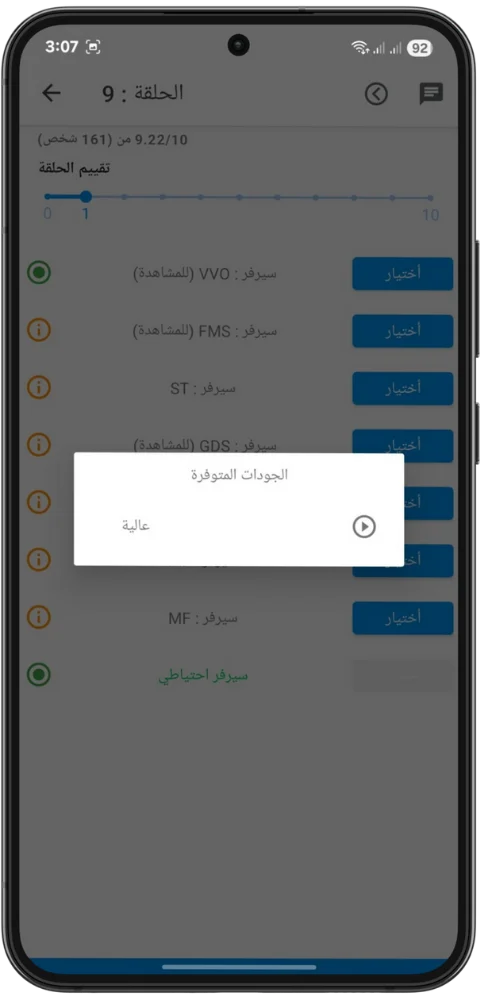
Also try a different video quality, if the app offers that choice. A high-quality stream needs a faster, steadier connection than a low-quality stream. If a lower quality plays while a higher quality fails, your connection may be the limiting factor. That is useful information, even if it is not the answer you wanted.
Check your own connection first
Many server errors turn out to be connection problems in disguise. A web page can load on a weak connection, while a video stream cannot. Start with the simplest checks:
- Open a different app or website that uses the internet, such as a browser or a video site, and see whether it loads normally.
- If you are on Wi-Fi, move closer to the router, or try switching to mobile data for a short test, and then switch back.
- If you are on mobile data, check that you still have data left and that you are not in an area with a weak signal.
- Turn Wi-Fi off and on again, or turn aeroplane mode on for ten seconds and then off, to force your phone to reconnect.
- Restart your router if other devices in the house are also struggling, and wait a few minutes for it to come back fully.
If other apps also fail, the problem is your connection, not Anime Slayer. Fix the connection first, and the app will usually work again on its own. If other apps work fine and only Anime Slayer fails, the problem is more likely with the app or its servers.
Restart the app and your phone
If your connection is fine, restart the app properly. Close it fully, so it is not running in the background, and then open it again. On Android, you can do this from the recent apps screen, or from the app settings, where you can choose Force stop. A simple restart clears temporary glitches and forces the app to make a fresh connection to the server.
If that does not help, restart your phone. This clears temporary memory, resets network connections, and closes background processes that may be interfering. It is a simple step, but it fixes more streaming problems than most people expect. After the restart, open Anime Slayer first, before other apps, and try the episode again.
Clear the cache, but understand what it does
If restarting does not help, clearing the app cache is the next safe step. The cache is temporary data the app stores to load faster, such as images and episode lists. Over time it can become outdated or damaged, and the app may keep trying to use a broken episode link stored in the cache.
On Android, go to Settings, then Apps, then Anime Slayer, then Storage, and choose Clear cache. Do not choose Clear data unless you understand the difference: clearing data removes your settings, saved lists and login details, and returns the app to a fresh state. Clearing cache is safe and does not remove your personal settings. After clearing the cache, open the app again and wait for the episode list to reload fully before you press play.
This step is untested as a guaranteed fix for any specific current server error, because the current state of the app servers is unverified. It is included here because it is a standard, safe step for streaming apps in general, and because it is the correct step to try before more drastic measures such as reinstalling.
When the problem is on the server side
Sometimes the problem is not your phone at all. Servers go down for maintenance, become overloaded when many people watch at the same time, or develop a fault that affects one region or one set of episodes. Signs that the problem is on the server side include:
- Every episode fails, on Wi-Fi and on mobile data, while other apps work normally.
- The app opens and the menus load, but no video starts at all.
- The same error appears on a second device using the same app.
- The problem starts suddenly, at a busy time such as an evening, and affects many episodes at once.
- The error message mentions the server directly, rather than your connection.
If several of these apply, the most sensible step is to wait and try again later. Server problems often clear within a few hours, once the load drops or the fault is fixed. Repeatedly force-stopping the app, clearing data, or reinstalling will not fix a server that is down, and it may waste your time and remove your settings for no benefit.
While you wait, avoid any website or social media post that claims to have a secret fix, a patched version, or a special server link. These are common places for fake downloads to appear, especially when a popular app is having problems. If you see such a claim, treat it with the same caution as any other download source.
Final thoughts
Server errors in Anime Slayer are frustrating, but they are also common to streaming apps in general, and they are often temporary. The key skill is telling a problem on your side from a problem on the server side. A failed connection, a weak signal, an outdated cache, or low storage can all look like a server error, and those are the problems you can fix yourself with the safe steps above.
When every episode fails, other apps work, and the error points to the server, waiting is the correct answer, not a sign of giving up. No setting on your phone can restart a remote server. If the problem lasts more than a day, or if the app shows a different kind of failure, such as crashing on launch or refusing to open, read our general troubleshooting guide, which covers those problems separately. And remember: this site is an independent guide, not an official source, and no page here can confirm the current state of the Anime Slayer servers, because that state is unverified.