How to Fix Anime Slayer Video Playback Problems
Playback problems are among the most frustrating faults in any video app, because the app may look normal while the video itself will not cooperate. The list loads, the episode page opens, and then the video buffers forever, shows a black screen, plays without sound, or loses its subtitles. This guide is a playback-specific deep dive. It covers buffering, black screens, audio faults, subtitle faults, and player choice, in that order, so you can work through the symptom you actually have.
This is an independent, unofficial guide site, not the official Anime Slayer website. The steps here are generic, safe steps only. They do not require a download from an unknown source, they do not ask you to change system settings that could harm your device, and anything that has not been tested is labelled as untested where it appears. For general faults, such as the app not opening at all or crashing before you reach a video, use the general troubleshooting page linked at the end of this article.
Start With the Symptom, Not the App
Playback faults fall into a small number of patterns, and each pattern points to a different first check. Before you change settings, note exactly what happens: does the video never start, does it start and then stop, does the picture fail while the sound continues, or does the sound fail while the picture continues? A clear description will also help if you later need to describe the problem to someone else. The usual patterns are a video that never starts, one that starts then buffers or freezes, a black screen with sound, a picture without sound, missing or wrong subtitles, or a player whose controls do not respond.
Write down which pattern you see, and whether it happens on every episode or only on one. If it happens on one episode only, the problem may be limited to that episode or its source, and the fastest test is to try a different episode of the same series.
Buffering and Freezing
Buffering is the most common playback complaint, and it is also the one most often caused by the network rather than the app. A video needs a steady stream of data. If that stream is interrupted, the player pauses while it waits for more data, and that pause appears as buffering.
Check the Connection First
Open another video app or a video website and play something there. If that video also buffers, your connection is the more likely cause. If other videos play smoothly, the problem is more likely to be specific to this app, this episode, or this source.
Try these steps in order:
- Move closer to your Wi-Fi router, or switch to mobile data if Wi-Fi is weak. A change in behaviour tells you where the problem lies.
- Restart your router if other devices on the same Wi-Fi also struggle. Wait for the router to fully restart before you test again.
- Close other apps that are downloading, updating, or streaming at the same time, especially on the same device.
- Turn your device’s Wi-Fi off and on again, or switch on aeroplane mode for a few seconds and then switch it off.
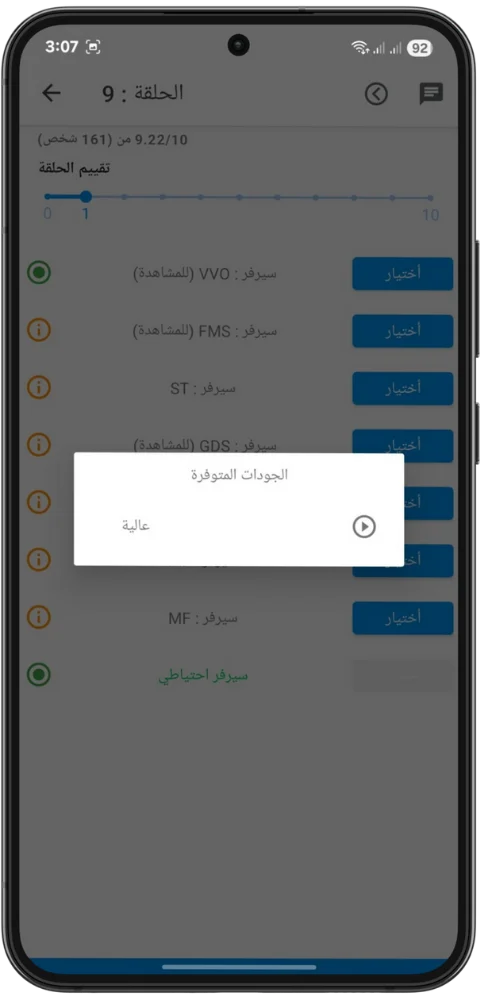
- Try the same episode at a lower video quality, if the app offers a quality setting. A lower quality needs less data and is a useful test, even if you prefer a higher quality normally.
Black Screen and Frozen Picture
A black screen is different from buffering. With buffering, the player usually shows a loading indicator. With a black screen, the player opens, sometimes with sound, but the picture is missing. A frozen picture is similar: the video stops on one frame while the audio continues or the player stops responding.
Work through these checks in order:
- Wait for ten seconds. Some players show a black screen briefly while the video starts, especially on a slow connection.
- Tap the screen once to show the player controls, then pause and play again. A single pause and resume can restart the picture without leaving the episode.
- Restart the app completely, then restart the device if the problem continues.
- Check the video quality setting. If the app offers a choice, try a lower quality. Untested for this app: whether a specific quality setting fixes a black screen in Anime Slayer has not been verified, so treat this as a test, not a confirmed fix.
- Try a different player, if the app offers a player choice. The player section below explains this in more detail.
If the black screen happens on every episode, on every series, and after a restart, the fault is more likely to be a device or app problem than a problem with one episode. If it happens on one episode only, the episode source is the more likely cause, and trying again later is a reasonable next step.
Audio Problems: No Sound, Quiet Sound, or Delay
Audio problems can be caused by the device, the app, the episode, or the audio track itself. Start with the simplest checks, and confirm that sound works elsewhere before changing app settings.
No Sound at All
- Check your device volume and mute switch. Play a video in another app to confirm that sound works there.
- Check whether your device is connected to Bluetooth headphones or a Bluetooth speaker. If it is, disconnect Bluetooth and test the device speaker.
- Pause and play the episode again, then close and reopen the player.
- Try a different episode. If sound works on other episodes, the audio track for the first episode may be missing or damaged.
Subtitle Problems: Missing, Wrong, or Out of Sync
Subtitle faults have their own pattern. The video may play perfectly while the subtitles are missing, in the wrong language, out of sync, or showing text that does not match the dialogue. Check the subtitle setting before you assume the episode is broken.
- Open the player controls and check whether subtitles are switched on. Some players hide the subtitle control behind a settings or speech-bubble icon.
- Check the subtitle language. If more than one language is offered, choose the one you want and reopen the episode to confirm.
- Try a different episode of the same series. If subtitles work there, the fault may be limited to one episode.
If subtitles are out of sync, try pausing and resuming, then try a lower quality, then try a different episode. A small delay that grows over the episode is often a fault in the subtitle timing for that episode, rather than a setting you can fix. Untested for this app: no subtitle-delay adjustment has been verified in Anime Slayer for this guide, so do not assume the app offers one.
Player Choice: Built-In Player and ASD Player
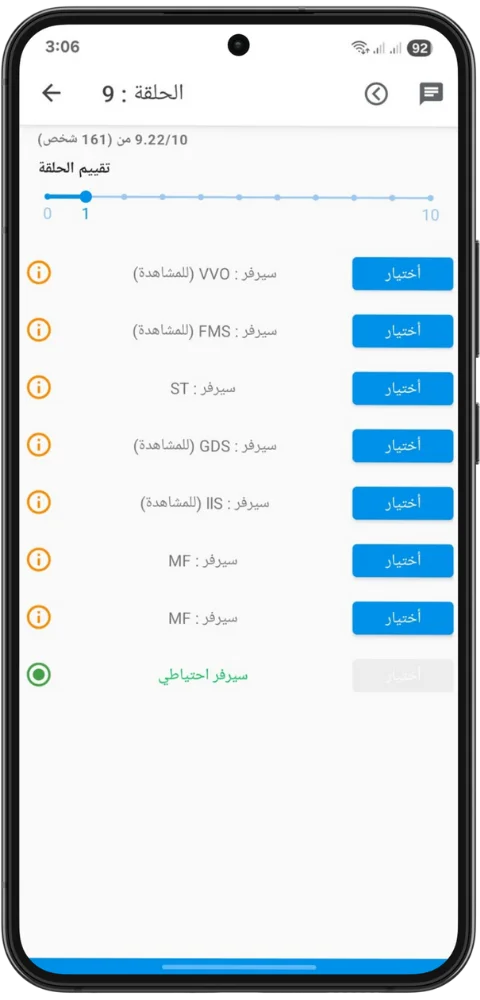
Some apps offer a choice of video player, and Anime Slayer is associated with ASD Player as an external player option. A different player can behave differently with the same episode: one may handle a particular video format better, show subtitles more reliably, or recover from buffering more quickly. If the app offers a choice, play the same episode in the built-in player first and note the symptom, then try ASD Player if it is installed and offered, and note whether the symptom changes. If one player works and the other does not, use the working player for that episode. If neither works, the problem is more likely to be the episode, the connection, or the app. ASD Player is a separate app: only install it from your device’s official app store and check the publisher name first. Untested for this app: the exact player settings that affect Anime Slayer playback have not been verified, so change one setting at a time and test the same episode after each change.
Final Note
Most playback problems have a simple cause: a weak connection, a single faulty episode, a muted device, a wrong audio track, or a subtitle setting that was switched off. Note the symptom, test another episode and another video app, and try the other player if one is offered. If the fault affects every episode after those checks, use the general troubleshooting page linked below. If it affects one episode only, waiting and trying again later is often the most useful next step.