
Installing Anime Slayer on Android is different from installing most apps, because it is not available on Google Play. Instead of tapping an install button in a store, you download an APK file and install it yourself. That is a normal Android process, but it only stays safe when you know exactly where the file came from. This guide walks through the whole installation, step by step, and explains the permissions and settings involved.
Read the safety warning first: this website is independent and unofficial. We do not develop Anime Slayer, we do not host its installation file, and we do not provide a download link. No verified authorised download source has been confirmed, so this page contains no file link at all. Before you install anything, use our guide to verifying a download source to check where a file comes from. If you cannot verify the source, do not install the file.
Before You Install: Three Checks
Do these checks before you download anything. They take a few minutes and they prevent most installation problems.
- Verify the source. The file should come from the developer or a source the developer clearly points to. If the only source you can find is a website you have never heard of, with no information about where its file came from, stop here.
- Check your Android version. The only version requirement we can document comes from the archived homepage of the previous site, which stated Android 4.4 and above for version 1.5.5 in February 2026. That is historical information, and the requirement of any current release is unverified. In general, newer Android versions are more likely to run a current app, and very old phones may not. You can check your version in Settings, then About phone, then Android version.
- Make sure you have enough space. The archived page listed the old file at about 13 MB, but the size of any current file is unverified. As a rule, keep at least 500 MB free before installing a video app, because the app itself, its cache, and any downloaded episodes all need room. Check free space in Settings, then Storage.
Step-by-Step Installation on Android
The steps below describe the standard Android installation process. Menu names differ slightly between phone brands, but the order is the same on all modern Android phones.
Step 1: Install ASD Player first
Anime Slayer uses a separate video player app, ASD Player, to play video. The archived homepage described ASD Player as a companion app for video playback, and it is the player the app was designed to work with. Unlike Anime Slayer itself, ASD Player has been available through Google Play. Install it from Google Play first, so the player is ready when you first open a video. If ASD Player is not available in the Play Store in your country, do not install it from a random website either — the same source checks apply.
Step 2: Allow installation from your browser or file manager
Android blocks installation from outside Google Play by default. On Android 8 and later, you allow it for one app at a time, which is safer than the old system-wide setting.
- Open Settings, then Apps.
- Tap Special app access, then Install unknown apps. On some phones this is under Settings, then Security, then Install unknown apps.
- Select the app you will use to open the file — usually your browser or your file manager.
- Turn on Allow from this source for that app only.
Do not turn this on for every app on your phone. Only the browser or file manager that will open the verified file needs the permission, and you can turn it off again after the installation is finished.
Step 3: Download the file — only from a verified source
Download the APK file only after you have verified the source. During the download, check that the file name ends in .apk and that your phone does not warn you that the file may be harmful. If Android or your browser warns you about the file, take the warning seriously and do not continue.
Step 4: Open the file and install
When the download finishes, open the file from your notifications or from your file manager’s Downloads folder. Android will show the permissions the app requests. Read them before you tap Install. After installation, tap Open, or find Anime Slayer in your app drawer.
Step 5: Open the app and complete the first launch
On first launch, the app may ask for storage permission so it can save downloaded episodes and cache video. It may also ask you to choose a video player — select ASD Player. If the app asks for permissions that have nothing to do with watching video, such as access to your contacts or messages, deny those permissions and check whether the file you installed is genuine.
Visual Walkthrough Reference (Archived Feb 2026 UI)
v1.5.5 and legacy site screens. Treat 1.5.5 strictly as a historical reference, verify any source before downloading, and turn «Install unknown apps» back off right after setup. 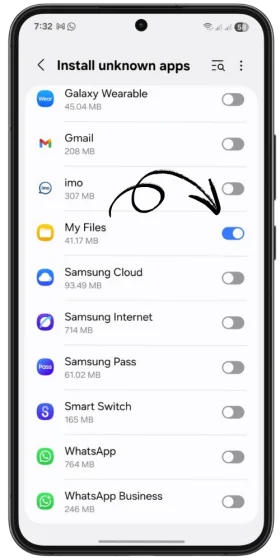
Allow Unknown Apps Temporarily
Enable Install unknown apps strictly for your browser or File Manager in Android privacy settings, never system-wide.
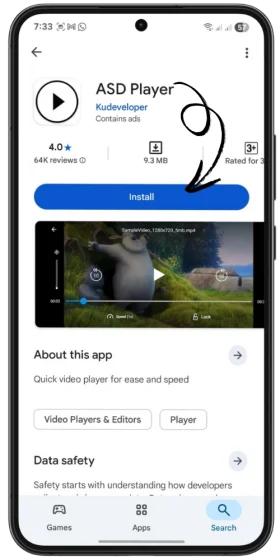
Install Companion ASD Player
Install ASD Player from Google Play before first playback so external streams launch smoothly.
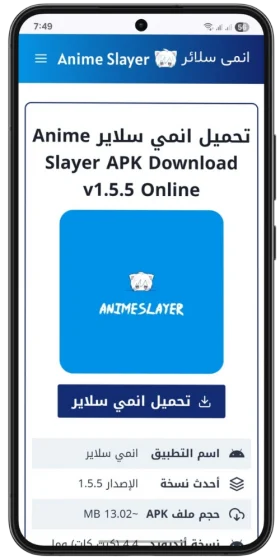
Verify Download Source (Archived UI)
Historical screen from the Feb 2026 archive displaying v1.5.5. Because this guide hosts no APK binaries, always follow our Source Safety Checklist.
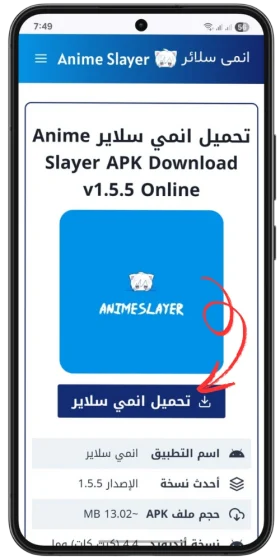
Inspect File & Extension Before Opening
Confirm the downloaded package ends in .apk and scan it with security tools before tapping to install.
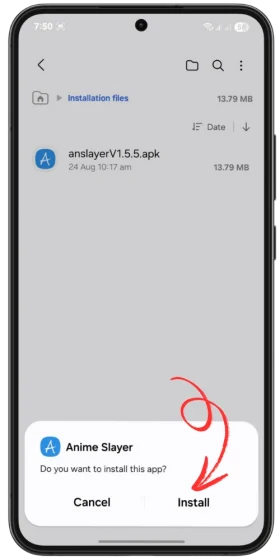
Review Installer Prompt (v1.5.5 Archive)
Tap the APK from Downloads, review requested permissions carefully, and tap Install only if permissions fit video playback.
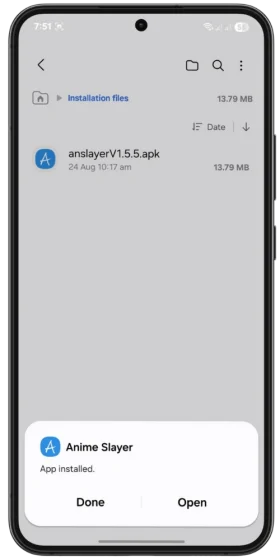
Launch App & Re-Lock Permissions
Tap Open once complete, select ASD Player when prompted, and disable «Install unknown apps» right afterward.
Understanding the Permissions
Knowing what each permission is for helps you spot a fake or modified copy. A video app normally needs:
| Permission | Why a video app needs it |
|---|---|
| Storage | To save downloaded episodes and cache video data |
| Network access | To stream and download video |
| Notifications | To tell you about new episodes, if you allow it |
A video app does not normally need access to your contacts, your messages, your call history, or your precise location. If an installation file requests those, treat it as a warning sign, deny the permissions, and verify the source before going further.
Common Installation Problems
- “App not installed” or a parse error: the file may be incomplete because the download was interrupted, or the file may not match your Android version. Download again from the verified source and check your Android version.
- Android blocks the installation: check that you allowed installation from the app you used to open the file, as described in Step 2.
- “Not enough storage”: free up space by removing unused apps or files, then try again.
- The app installs but will not open: restart your phone and try again. If it still does not open, see our troubleshooting guide.
- Video plays without sound, or not at all: this is usually a player problem, not an installation problem. Make sure ASD Player is installed and selected as the player.
After Installation: Turn the Setting Back Off
Once Anime Slayer is installed, go back to Settings, then Apps, then Special app access, then Install unknown apps, and turn off the permission for your browser or file manager. Leaving it on makes it easier for a harmful file to be installed later by accident. You can turn it on again, for one app at a time, whenever you need it.
Frequently Asked Questions
Where can I download Anime Slayer?
There is no verified authorised download source confirmed at the time of writing, so this site provides no download link. An installation file should come from the developer or a source the developer clearly points to. Our guide to verifying a download source explains how to check a source before you install anything.
Is it safe to install an APK file from outside Google Play?
It can be safe when the file comes from a verified source and you check it first, and it can be risky when it does not. The risk is not the APK format itself — it is not knowing who made the file. Verify the source, compare the version and any checksum the publisher provides, and read the permissions before installing.
Why does Android warn me about installing the app?
Android warns about any app installed outside Google Play, because the store’s checks have not been applied to that file. The warning is a reminder to check the source, not proof that the file is harmful — but it should never be ignored.
Do I need ASD Player to use Anime Slayer?
According to the archived homepage of the previous site, ASD Player was the companion player used for video playback. Install it from Google Play before you first play a video, and select it as the player inside the app.
The app installed but videos do not play. What is wrong?
First check that ASD Player is installed and selected. Then check your internet connection and try a different video. If the problem continues, work through our troubleshooting guide, which covers buffering, black screens, and server errors.